Showing posts with label MOTOROLA. Show all posts

Tuesday, January 1, 2013

Quantar and Quantro CPS R14.11.00


Product: Radio Service Software
Version: R14.11.00
Type of Release: General Box Release
Date of Release: Dec 31, 2012


RSS Overview

The model RVN5002 (ver 14.11.00 and later) RSS is a GUI-based alignment, programming, and
diagnostics program for various Motorola base station and comparator products. The program is
designed to run on any laptop or desktop personal computer that is capable of running Microsoft
Windows XP, Windows Vista, Windows 7 or Windows Server 2008 R2.
This chapter provides information on frequently performed operations such as launching the
RSS program and downloading a codeplug from a connected device. The following topics are
included:
• “User Interface Description”
• “PC Requirements”
• “Installing the RSS Software”
• “Connecting the PC to the Device RSS Port”
• “Launching the RSS Program”
• “Exiting the RSS Program”
• “Navigating Through the RSS Screens”
• “Reading the Device Codeplug”
• “Writing Codeplug Data to the Device”
• “Obtaining Codeplug Size”
• “File Maintenance”


Summary of Features

The RSS program provides the following features and capabilities:
• Read and program device codeplug data
• Create replacement codeplug files based on default codeplug template files included with
the RSS program
• Optimize newly installed devices
• Modify or upgrade existing installations

• Perform device alignment procedures
• Interrogate and interpret device status log files
• Perform comprehensive diagnostics on all device modules
• Perform digital metering to measure key voltages and levels


Monday, December 24, 2012

Astro 25 Portable R17.01.02


===============================================
ASTRO 25 Portable CPS R17.01.02 and
ASTRO 25 Tuner R05.04.03
===============================================

- Windows 7 is supported in R15.00.00 CPS and higher.

- The vendor has phased out support for the parallel port adapter DS1410E. Therefore
  Motorola does not support the parallel port on Windows 7 or x64 bit machines.

- If both portable and mobile CPS's are used, it is recommended to update
  both at the same time, and tutorials should be installed with BOTH versions.

- POP25 feature is NOT supported with VISTA operating system.


New CPS Features Supported:
=============================

- Conventional Channel Revert with Emergency on Trunking Channel

This feature provides the ability to revert to a conventional channel when
the emergency button on the radio is pressed while the radio is on a trunking
channel. When the emergency is exited, the radio will return to the original
talkgroup channel.

Detailed information for each of these features can be found in the CPS
help. Help can be accessed from the CPS menu by selecting Help-> CPS Help
Topics.


New Radio Features Supported:
=============================

IMPORTANT NOTE: Firmware version R17.01.01 is required for the following features to
  work in the radio:

- Conventional Channel Revert with Emergency on Trunking Channel

For a detailed description of each feature, please see the radio's User Manual.

PLEASE NOTE: Cloning will NOT be allowed to a radio that does NOT have firmware version
R17.01.01 or higher when this feature is configured in the CPS codeplug.


For VISTA Users:
================

The following configuration on Vista Home Premium and Business Premium needs
to be set for the CPS to function properly:

- Vista Theme should be set to Windows Classic.
- Codeplug archive names should not exceed 30 characters.
- A Vista compatible printer is required for using the Print functionality
  in the CPS.
- In order for the PDA to synch successfully with CPS on Vista, Windows
  Mobile Device Center should be used. It can be downloaded from
  http://www.microsoft.com/windowsmobile/devicecenter.mspx.


Tutorials Update:
==================
 Help format requires Microsoft Internet Explorer version 6 or above. Microsoft
 shipped Internet Explorer version 6 in 2001.
 It is strongly recommended to install the tutorials with this new version
 of the CPS. Previous tutorial versions are not recognized by R12.00.00 CPS
 or higher.

Note: Double-clicking a link within the help text might generate a error
message.


System Requirements:
====================
Operating Systems:   Windows XP Home Edition (SP 1 or higher)
    Windows XP Professional (SP 1 or higher)
    Vista Home Premium 32-bit (SP 1 or higher)
    Vista Business 32-bit (SP 1 or higher)
    Windows 7 Home Premium 32-bit and 64-bit
    Windows 7 Professional 32-bit and 64-bit

                     NOTE: XP upgrade, Vista upgrade or Windows 7 upgrade from other
  operating systems is not supported.

      Windows ME, Windows 98, Windows NT and Windows 2000 are NOT supported.
                   

Hardware Requirements:
======================  
Processor            400 MHz or higher Pentium grade Processor for XP
    Vista and windows 7 requires 1 GHz

Memory               512 MB RAM minimum for XP
    1 GB RAM minimum for VISTA
    1 GB RAM for Windows 7 32-bit, 2 GB RAM for Windows 7 64-bit
                   
Hard Disk Space      1 Gigabyte Drive with 250 MB minimum free space
    (for a Typical Installation, including Help
    Audio-Visual Tutorials) or 150 MB minimum free
    space (for a Compact installation)
    40 GB hard drive for Vista
    16 GB minimum free space for Windows 7 32-bit or 20 GB for Windows 7 64-bit

Peripherals          Microsoft Windows supported Mouse or Trackball
                     Microsoft Windows supported Serial Port
                     for radio communication
                     Microsoft Windows supported Printer Port
                     for report printing
                     CD-ROM for software installation

                     NOTE: For computers that are not equipped with
a serial port, radio communications may be
possible with the use of an off-the-shelf
USB to RS232 converter, such as the IOGEAR
USB to Serial/PDA Converter Cable.

Known Issues:
=============
1) Drop down items in table fields cannot be accessed when using Windows XP
   Professional "Windows XP Style" display.  If this issue is encountered,
   change the display setting to "Windows Classic Style" for proper
   functionality.
2) Attempting to Read from or Write to a radio with the CPS while the Tuner,
   Data Link Manager, or synchronization software for a PDA is open and
   communicating with a radio will cause a communication failure.
3) Due to French import laws, the Microsoft encryption support used to
   create archive (.cpg) files with the CPS (Customer Programming Software)
   is not available on the French version of the Windows Operating Systems.
   Therefore, there is no way to save archive files when the CPS is
   installed on the French version of Windows. Until import laws are
   changed such that Microsoft can provide encryption support, this feature
   can not be addressed.
4) Under Tools->FLASHport->Read Radio Configuration, closing the dialog box
   by pressing the 'X' in the upper right of the dialog while the application
   is still busy (the cursor is shaped like an hourglass) may terminate the
   application.
5) Memory issues have been reported when 3 or more sessions of the CPS are
   open at the same time.
6) Please install the CPS before attempting to connect the radio to the PC
   using the USB cable.
7) If Logitech MouseWare version 9.76 is installed on the PC, it causes
   Tools>Reports to fail and enter corrupt data in the registry. This occurs
   when an ampersand is entered as part of a Zone Channel name. If the
   MouseWare is either removed or upgraded to MouseWare version 9.79.1 or
   later, it resolves the problem.
8) Once starting to read or write codeplug via POP25, the process can't
    be cancelled. Depending on the size of codeplug, this process could
    take long time (3 to 8 minutes).
9) Please avoid saving an invalid codeplug with "~" characters in table fields.
     Doing so may cause the application to terminate.
10) If an Advanced System Key(ASK) fails to load, close the currently open
    codeplug and reopen it. The System Key should be active, even though an error
    message may appear.
11) When formatting an Advanced System Key, the 'Initialize' message may appear
    several times. Please select 'Cancel' to proceed.
12) 'Failsoft Connect Tone' field can only be Advanced System Key protected if
    'Connect Tone' is also protected. Specific protection for this field is not
    supported.
13) Voice Files do NOT get copied when using POP25 feature.
14) "Preset Zone and Channel Enable" should NOT be enabled when using a DTMF
    mic.
15) Help files may not open after importing a csv file. If so, close and re-open
    CPS for the help files to open successfully.
16) Codeplug archive names should not exceed 30 characters on Windows 7 and VISTA.
17) Users of the Network Radio Programmer on Windows 7 64-bit machines may see a
    "Program Compatibility Assistant" popup displayed during installation. This is
    due to Microsoft .NET Framework 1.1 compatibility issues with those machines.
    After continuing the installation by clicking the "Run program" button on the popup,
    the Network Radio Programmer feature can still be used on the machine.
18) Attempting to Read from or Write to a radio with the CPS before the radio has
    enumerated will cause a communication failure.
19) Please note that the 'Emergency Revert Channel' field in the ASTRO tab
    for each Conventional Personality will become invalid if it references a
    Channel whose system is a DVRS ASTRO System with Dynamic Regrouping Enabled.


Installation:
=============
1) It is no longer required that the previous version of the application be
   uninstalled before installing this release.  Note that this does not allow
   multiple versions to be installed, rather the already installed application
   will be upgraded.
2) When the Installation CD is inserted into the CD-ROM drive, the
   installation will start automatically if auto start is enabled for
   the PC. Follow the on-screen instructions to install the software.
3) Please refer to the CPS Programming Installation Guide, which is
   included with this software for more detailed information.
4) If a file installed by the CPS later becomes corrupted, the Repair
   option on the Installation CD may be used to restore it. It is very
   important that the Installation CD for the same version that is
   installed on the computer is used for Repair. Use of a different
   version in an attempt to Repair an installation will result in further
   corruption.
5) If the PC has never had a 1-Wire USB device connected to it before, such
   as the USB dongle used for FLASHkeys or Advanced keys, then plug it in right
   after installation to complete the USB install. If it is not recognized or if
   auto-detect can not locate the USB device driver, then point the New Hardware
   Wizard's Driver installer to it in the install drive, such as
   "C:\". The wizard should then find and install the driver automatically.


Connecting the PC to the Radio:
===============================
Do not use the Radio Interface Box (RIB), Smart Radio Interface Box (SRIB)
or any of the cables that plug into those boxes. Use only the following
direct PC to radio cables:
 
   XTS 5000 / XTS 2500 / SSE 5000 / XTS 1500 / MT 1500 / PR 1500:

         RS232 cable = RKN4106
         USB cable = RKN4105

   XTS 4000:

         RS232 cable = NKN1027A
         USB cable = NKN1029A

When using the USB cable, be sure to always click "Yes" on the Digital
Signature window whenever it is displayed by the operating system. Note
that the USB cable can be used only with Windows XP Service Pack 1 or higher operating
systems. The CPS or Tuner application must first be installed before attaching the USB
cable and turning the radio on.

For additional cables information, go to Help-> CPS help topics -> Index ->
 Part Numbers.


For POP25 Operation:
====================
TCP Retransmissions on your machine needs to be set to 5 or higher. Motorola
recommends that if the following registry keys are defined on your system,
they be set to the following values for POP25 operation:

On Windows 7, Windows Vista and XP:
HKEY_LOCAL_MACHINE
 \SYSTEM
 \CurrentControlSet
 \Services
 \Tcpip
 \Parameters
 \TcpMaxDataRetransmissions - 5 or more

On XP Only:
HKEY_LOCAL_MACHINE
 \SYSTEM
 \CurrentControlSet
 \Services
 \Tcpip
 \Parameters
 \TcpMaxConnectRetransmissions - 3 or more

For help on editing registry values, read Microsoft online support at http://support.microsoft.com
/kb/256986.

- While the POP25 operation is in progress, do NOT attempt to start a second session until the first is done.

-  In order to do a differential write during POP25 (OTAP), the radio must
   first be read via POP25 and then written using the CPS Write Device function.
   Differential write is only effective for one read/write session.  After one
   differential write, the radio must be read again to perform another
   differential write otherwise a full write will be done for subsequent writes.

Note: Differential write is not supported for any Clone feature. When doing
      a Clone operation or Full write to a radio, please ensure that the
      "Update Only Modified Fields via OTAP" field in
      View -> Options -> POP25 Parameters page is NOT enabled.


Programming Hints:
==================
1) For trunking customers, the first time the CPS is started, navigate to the
   User Settings Dialog under the Tools menu and set up the directories where
   the system key files will be stored.
2) To retrieve data from XTS 3000 or ASTRO Saber codeplugs, first read
   the codeplug into the ASTRO Saber / XTS 3000 CPS and use the top node
   drag and drop feature to copy the data into the XTS 5000 or XTS 2500
   codeplug. Drag and drop is a very powerful and time-saving tool, but the
   data should always be verified before writing to a radio. The Drag and
   Drop Report can help with this verification. Please view the Drag and
   Drop Tutorial included in Help for more information.
3) To get help on a field, press F1 while focus is on the field, or click on
   the Help button on the tool bar (an Arrow with a question mark) and then
   click on the field for which help is desired.
4) For more information on the features available in the Windows CPS, we
   suggest viewing the audio-visual help tutorials. They can be accessed
   from the CPS menu by selecting Help->CPS Help Topics, and then double-
   clicking on CPS-User...Audio & Video Tutorials, then The Tutorials Menu.
   Then select the appropriate tutorial.


Legal Notices
==================================

This media, or Motorola Product, may include Publicly Available Software (Open Source Software,
Freeware, Shareware). Please reference the Motorola Publicly Available Software Legal Notices File,
MOTOROLA_OSS_LEGAL_NOTICES_FILE-CPS.txt, located in the Legal folder found in the CPS
installation directory, for the Publicly Available Software licensing  terms, attributions,
acknowledgements, and other software information details.


===============================================================
ASTRO 25 Tuner R05.04.03
===============================================================

This new version of the Tuner includes support for Windows 7 32 bits
and 64 bits operating systems.

Attention VISTA users:

 The following configuration on Vista Home Premium and Business Premium
needs to be set for the CPS to function properly.

Vista Theme should be set to "Windows Classic" when saving radio's tuner information to a file, the name of the
file should not exceed 30 characters.
Vista Compatible Printer is required for using the Print
functionality in the CPS.


IMPORTANT !!: If installing CPS R09.00.00, please make sure to also
install Tuner R05.03.00 or this version of the Tuner. Previous versions
of the Tuner are not compatible with CPS R09.00.00 or later.


Radio Models Supported:
=======================
This software supports the following radios:
 XTS 1500
 XTS 2500
 XTS 2000
 ATS 3000
 XTS 4000
 XTS 5000
 SSE 5000
 MT  1500
 PR  1500
 ASTRO Spectra Plus
 XTL 1500
 XTL 2500
 XTL 5000
 PM  1500
 HPD 1000 modem

Supported features: (Please refer to the Help text for
===================  model applicability)

Transmitter Alignment features:
------------------------------
 PA Bias
 Reference Oscillator
 HPD Tx Open Loop Power
 HPD Tx IQ Balance
 HPD Tx Autopower
 HPD Tx Closed Loop Power
 Power Detection Calibration
 Tx Power (High/Mid/Low)
 Tx Power Characterization
 Tx Current Limit
 Tx Deviation Balance
 Tx Deviation Limit


Receiver Alignment feature:
---------------------------
 Front-end filter

Performance Testing features:
----------------------------
 Bit Error Rate
 Transmitter test pattern
 HPD Bit Error Rate
 HPD Carrier Feedthru

Other features:
---------------
 Battery Calibration
 Microphone Sensitivity
 Save data to file
 Restore data from file to radio
 Print


Supported Operating Systems:
============================
RS232 Operation:

 Windows XP (Home Edition and Professional )
 Windows Vista (Home Premium and Business Premium)
 Windows 7 32 bits and 64 bits(Home Premium and Professional Premium)
 Note: (Pre-installed only, XP upgrade from other
       Operating systems is not supported at this time.)
Windows ME and Windows 98 are no longer supported.
You may choose to proceed with the installation, but
        some features might not be functioning properly.
        Upgrading the operating system is highly recommended.

USB Operation:
 Windows XP (service pack 1 or higher)
 Windows Vista
 Windows 7


Installation:
=============
1) When you insert the Installation CD into the CD-ROM drive, the
   installation will start automatically if you have auto start enabled
   for your PC. Follow the on-screen instructions to install the    software.
2) Please refer to the CPS Programming Installation Guide, which you
   received with this software for more detailed information. It is
   essential to follow these instructions in order for communication
   between the PC and radio to work properly.

Connecting the PC to the radio:
===============================
Do not use the Radio Interface Box (RIB), Smart Radio Interface
Box (SRIB) or any of the cables that plug into those boxes.

Use only the following direct PC to radio cables:

 XTS 1500/ XTS 2000 / ATS 3000/ XTS 2500/ XTS 5000/ MT 1500/ PR 1500 RS232 cable = RKN4106
 XTS 1500/ XTS 2000 / ATS 3000/ XTS 2500/ XTS 5000/ MT 1500/ PR 1500 USB cable = RKN4105
 SSE 5000 RS232 cable = RKN4122
 SSE 5000 USB cable = RKN4121

 ASTRO Spectra Plus / XTL 5000 RS232 cable = HKN6155

 XTL 5000 (with 'O5' Control Head)/
 XTL 2500/ XTL 1500/ PM 1500 RS232 GCAI cable = HKN6183

 XTL 5000 (with 'O5' Control Head)/
 XTL 2500/ XTL 1500/ PM 1500 USB GCAI cable = HKN6184

 HPD 1000 USB Cable = HKN6177A (6 ft) or HKN6178A (16.5 ft)

Note: When using the USB cable, be sure to always click "Yes" on the
Digital Signature window whenever it is displayed by the operating system.
Note that the USB cable can be used only with Windows XP Service Pack 1 or
higher.

Known issues:
=============
1) In the event that PC to radio communications fail even after
   attempting to read the radio multiple times, it might be necessary
   to reset the communications by either turning the radio off/on or
   by disconnecting/reconnecting the cable connected to the radio.

2) PC to radio communications will sometimes fail if you attempt
   to read the radio immediately after closing the previous tuning
   session. Wait for the "hourglass" to disappear before reading
   the radio again.

3) When entering data in the Transmit Power Characterization screen,
   the values used must be measured values, any other values might
   generate unpredictable results.

4) The XTL radios and the HPD modem take longer to reset than
   the ASTRO Spectra Plus radios. When tuning these radios, allow enough
   time for the radio to reset before attempting to read/tune the radio
   again.

5) During HPD BER testing, the Rx Frequency should NOT be changed while
   the test is running. If the Rx Frequency needs to be changed, please
   STOP the test, change the frequency, then start the test again.

6) During the HPD BER testing, it is not recomended to transmit while

   the Rx test is running.

Professional Radio CPS R06.12.05


ENGLISH
This file contains important information about the installation of this
Customer Programming Software (CPS) on the Windows Operating Systems. To
see this information in English, please scroll down.
             ----------------------------------------
ESPAÑOL
Este archivo contiene información importante sobre la instalación de este
Software de Programación (CPS)  en el sistema operativo Windows.
Para observar esta información en español, desplace la pantalla hacia abajo.
             ----------------------------------------
PORTUGUÊS
Este arquivo contém informação importante sobre a instalação do Software de
Programação (CPS)  no sistema operativo Windows. Para observar esta
informação em português, role a tela para baixo.


===============================================================
Professional Radio - Customer Programming Software R06.12.05
================================================================

Enhancements in this release:
---------------------
- Support Windows7 (64 bits edition). [All regions].


System Requirements:
--------------------
Operating Systems: Windows 95, Windows 98, Window NT 4.0,
                   Windows ME, Windows 2000 Professional, Windows XP (Home and Office),
                   Windows Vista(32 bits edition), Windows7 (32 bits edition), Windows7 (64 bits edition)

Hardware Requirements:    
Processor       Pentium II 333 or higher
Memory          64 MB RAM recommended
Hard Disk Space 16 MB minimum Free Space
Peripherals     Microsoft Windows supported Mouse or Trackball
                Microsoft Windows supported Serial Port for radio communication
                Microsoft Windows supported Printer Port for report printing
                1.44 MB 3 1/2 inch Floppy Disk Drive
                CD-ROM for software installation
             
Warning:
----------------

1) If your PC is running the first release of Microsoft Windows 95
   and Internet Explorer has not been installed, you may experience
   problems in installing and running the CPS due to certain
   components of the operating system being out of date.

   To eliminate this problem two Microsoft patches have been included
   on the CPS CD. If you experience any problems under Windows 95,
   please go to the CD and run:
     /Win95Patches/40comupd.exe
     /Win95Patches/dcom95.exe
   and then re-install the CPS.

2) On some PCs, the CPS may abnormally terminate if Print Preview
   is attempted on the Print Custom screen. This problem only occurs
   when Print All is selected. This problem has been observed on
   Compaq Windows 98 computers with the following programs running:
      * Easy Access Internet Program (cpqEasyAcc.exe)
      * Compaq Internet Watchdog Program (watchdog.exe)
   If this CPS function is to be used, it is recommended that these
   programs be removed from the PC startup.

3) On some printers, the columns in some printed tables might be
   slightly wider than they should be, causing the table to spread
   horizontally onto a second page.

4) On certain HP Laserjet printers the Print Summary option will only print
   one page. If you experience this problem, it is recommended that you first
   save the information to a file and then use any Editor (Word, Wordpad, etc..)
   to open the file and print the summary information.

5) When using Windows ME and Windows XP, sometimes an extra set of scroll bars get
   displayed when viewing certain screens.

6) When using Vista and Windows 7 OS, please ensure the DPI setting is default 100%
   or enable the checkbox of "Use Windows XP style DPI scaling" in Custom DPI Setting window
   to avoid CPS GUI incorrect layout problem.

7) When using Vista and Windows 7 OS, you may experience a "CPS failed to launch help files" problem.
   The problem is due to Windows help program will not be shipping as a feature of Windows Vista or Windows 7,
   so please download WinHlp32.exe from Microsoft Download Center to solve the problem.
 

Note: while programming radio,the most possible reasons (but not all) to see the secondary
      pop up warning message are:

      (1) The target radio model number mismatch CPS archive file.
      (2) The target radio region ID is not supported by the CPS.
      (3) The target radio codeplug mismatch with the CPS.
      (4) CPS password verification failed when write radio.
      (5) CPS and radio communication error.


Programming Hints:
------------------

1) It should be noted that a new/added conventional personality
   must be assigned to a zone/channel position. To add a zone to
   a radio click the "+" in a Personality Assignment to Zone
   Window. To add a conventional personality to the radio, click
   the "+" on a Conventional Personality Window. To add an
   additional conventional personality to a zone go to the
   Personality Assignment to Zone:Channel window for the
   desired zone.  Click the right mouse key within the channel
   table to add a conventional personality entry. Please read
   the CPS help for additional information.

2) Speed Dial buttons should not be programmed to the P1, P2, and
   P3 buttons on radios, which overlay these buttons with the menu
   navigation keys. The speed dial buttons will not operate
   in this configuration because the buttons function as the menu
   navigation keys when phone mode is entered.

3) When adding a new conventional personality, verify that the
   bandwidth selected on the Conventional Personality  Basic screen is
   correct.  Incorrect selections will lead to poor radio
   performance.


====================================================================
Radio Profesional - Software de Programación para Clientes R06.12.05
====================================================================

Actualizaciones en esta publicación.
-----------------------------------
- Apoyo Windows7 (64 edición bits). [Todas las regiones].


Requerimientos del Sistema:
--------------------------
Sistemas Operativos: Windows 95, Windows 98, Windows NT 4.0,
                     Windows ME, Windows 2000 Professional, Windows XP (Home y Office),
                     Windows Vista(32 edición bits), Windows7 (32 edición bits), Windows7 (64 edición bits)


Requerimientos de Hardware:    
Procesador       Pentium II 333 o superior
Memoria          64 MB RAM recomendado
Espacio en Disco Rígido mínimo 16 MB de Espacio Libre
Periféricos      Mouse o Trackball soportado por Microsoft Windows
                Puerto Serial para radiocomunicaciones soportado por Microsoft Windows
                Puerto de Impresora para impresión de informes soportado por Microsoft Windows
                Unidad de Disquetes de 3 1/2 pulgadas de 1,44 MB
                CD-ROM para instalación de software
             

Advertencia:
--------------------------

1) Si su PC corre la primera versión de Microsoft Windows 95
   y no ha instalado Internet Explorer, podr?experimentar
   problemas en la instalación y ejecución de CPS debido a que ciertos
   componentes del sistema operativo son obsoletos.

   Para eliminar este problema, se han incluidos dos parches (patches) de Microsoft
   en CPS CD. Si experimenta problemas con Windows 95,  por favor vaya al CD y ejecute:
     /Win95Patches/40comupd.exe
     /Win95Patches/dcom95.exe
   y luego reinstale CPS.

2) En algunas PC, el CPS puede terminar en forma anormal si intenta hacer Print Preview
(vista preliminar de impresión) desde la pantalla Print Custom (impresión customizada).
Este problema sólo ocurre cuando se selecciona Print All (imprimir todos).  Este problema
ha sido observado en las computadoras Compaq Windows 98  con los siguientes programas:
      * Easy Access Internet Program (cpqEasyAcc.exe)
      * Compaq Internet Watchdog Program (watchdog.exe)
   Si debe utilizar la función CPS, se recomienda retirar estos
   programas del inicio de la PC.

3) En algunas impresoras, las columnas en algunas tablas impresas podrían
   ser apenas más anchas de lo habitual, haciendo que la tabla se expanda
   en forma horizontal hacia la segunda página.

4) En ciertas impresoras HP Laserjet la opción Print Summary (imprimir resumen) sólo imprimir?
   una página. Si experimenta este problema, se recomienda que primero
   guarde la información en un archivo y luego utilice un editor (Word, Wordpad, etc.).
   para abrir el archivo e imprimir la información de resumen.

5) Con Windows ME y Windows XP, a veces se representa un conjunto extra de barras de desplazamiento
   cuando se visualizan ciertas pantallas.


Sugerencias de Programación:
---------------------------

1) Nótese que toda personalidad convencional nueva/agregada
   deber?asignarse a una posición de zona/canal. Para agregar una zona a
   un radio, haga clic en "+" en una ventana Personality Assignment to Zone
   (asignación de personalidad a una zona). Para agregar una personalidad
 convencional al radio, haga clic en "+" en una ventana Conventional Personality
(ventana de personalidad convencional). Para agregar una personalidad adicional a una zona,
ir a la ventana Personality Assignment to Zone: Channel (asignación de personalidad a
zona:canal) para la  zona deseada.  Haga clic en el botón derecho del mouse dentro
de la tabla  del canal para agregar la entrada de una personalidad convencional. Por favor lea
   la ayuda de CPS para mayor información.

2) Los botones de Speed Dial (discado rápido) no deberán programarse
    en los botones P1, P2, y P3 en los radios que superponen estos botones con las teclas
   de navegación del men? Los botones de discado rápido no funcionarán
   en esta configuración porque los botones funcionan como las teclas
   de navegación del men?cuando se ingresa el modo teléfono.

3) Cuando se agrega una nueva personalidad convencional, verifique que el
   ancho de banda seleccionado en la pantalla Conventional Personality Basic (personalidad
 convencional básica) sea correcto.  Las selecciones incorrectas llevarán a un mal
   funcionamiento del radio.


=================================================================
Rádio Profissional - Software de Programação do Cliente R06.12.05
=================================================================

Melhorias nesta versão:
----------------------
- Suporte Windows7 (64 edição bits).[Todas as regiões].


Requisitos de Sistemas:
----------------------
Sistemas Operacionais: Windows 95, Windows 98, Window NT 4.0,
                       Windows ME, Windows 2000 Professional, Windows XP (Home e Office),
                       Windows Vista(32 edição bits), Windows7 (32 edição bits), Windows7 (64 edição bits)


Requisitos de Hardware:    
Processador       Pentium II 333 ou superior
Memória          64 MB RAM recomendada
Espaço em Disco Rígido   Mínimo de 16 MB de espaço livre
Periféricos     Mouse ou Trackball com suporte Microsoft Windows
                Porta Serial com suporte Microsoft Windows para comunicação de rádio
                Porta para Impressora com suporte Microsoft Windows para impressão de relatórios
                Unidade de Disco Flexível de 1,44 MB 3 1/2 pol
                CD-ROM para instalação de software
             
Aviso:
---------------------------

1) Se seu PC estiver executando a primeira versão de Microsoft Windows 95
   e Internet Explorer não estiver instalado, voc?pode ter problemas na
   instalação e execução do CPS pelo fato de que certos componentes
   do sistema operacional estarem desatualizados.

   Para eliminar este problema, duas correções (patches) Microsoft foram incluídas no CD
   de CPS. Se tiver problemas com o Windows 95, v?para o CD e execute:
     /Win95Patches/40comupd.exe
     /Win95Patches/dcom95.exe
   e depois reinstale o CPS.

2) Em alguns PCs, o CPS pode terminar anormalmente se Print Preview (ver impressão antecipada)
   for buscado na tela Print Custom (customizar impressão). Esse problema somente
   ocorre quanto Print All (imprimir tudo) ?selecionado. Esse problema foi observado em computadores
   Compaq Windows 98 com os seguintes programas em execução:
      * Programa Easy Access Internet (cpqEasyAcc.exe)
      * Programa Compaq Internet Watchdog (watchdog.exe)
   Se essa função do CPS for usada, recomenda-se a remoção desses programas
   da inicialização do PC.

3) Em algumas impressoras, as colunas em algumas tabelas impressas podem ser
   levemente mais largas do que deveriam, fazendo a tabela se estender horizontalmente
   para uma segunda página.

4) Em algumas impressoras HP Laserjet, na opção Print Summary (resumo de impressão) apenas
   uma página ser?impressa. Se enfrentar esse problema, recomenda-se primeiro salvar
   as informações para um arquivo e depois usar qualquer programa de edição (Word, Wordpad, etc..)
   para abrir o arquivo e imprimir as informações do resumo.

5) Quando em Windows ME e Windows XP, algumas vezes um jogo extra de barras de paginação
   ?exibido quando são mostradas determinadas telas.


Dicas de Programação:
--------------------

1) Deve-se observar que uma nova/adicional personalidade convencional
   deve ser designada para uma posição de zona/canal. Para acrescentar uma zona
   a um rádio clique no "+" em uma Personality Assignment (designação de personalidade)
   para a Zone Window (janela de zona). Para acrescentar uma personalidade
   convencional ao rádio, clique no "+" em uma Conventional Personality Window (janela de personalidade
   convencional) . Para acrescentar uma personalidade convencional adicional a uma zona
   v?para a Personality Assignment (designação de personalidade) para a janela Zone:Channel (zona:canal)
   da zona desejada.  Clique a tecla  direita do mouse dentro da tabela de canal para acrescentar uma entrada
   de personalidade convencional. Consulte a ajuda do CPS para informações adicionais.

2) Os botões de Discagem Rápida não devem ser programados nos botões P1, P2 e
   P3 nos rádios, o que sobrepõe esses botões com as teclas de navegação do menu.
   Os botões de discagem rápida não vão operar nesta configuração, pois os botões
    funcionam como as teclas de navegação do menu quando o modo de telefone
    ?selecionado.

3) Ao acrescentar uma nova personalidade convencional, certifique-se de que a
   largura de banda selecionada na tela Conventional Personality  Basic (básica de personaliadade
   convencional) seja a correta.
   Seleções incorretas levarão ao mau desempenho do rádio.

Monday, June 25, 2012

Tetra Terminals MR5.14 Software Release


The MR5.14 software release supports the following TETRA terminals:
-MTH800 380-430MHz and 440-470MHz only.
-MTP850 MTP850 IP54 MTP850 IP55 MTP850 3L IP54 MTP850 3L IP55 MTP850 S
-MTP850 FuGtMTP850 Ex
-MTP810 Ex
-MTP830 S
-MTP830 FuG
-MTP830
-CEP400
-TCR1000
-MTM800
-MTM800 E  

The MR5.14 software release highlights are:
-DMO Presence Check
-Enhanced emergency operation
-Enhanced non-emergency calls, Disaster Alert, Assistance Call, Announcement Call
-3 Level Folder structure
-Numerous code plug enhancements.
-Adoption of MR5.13.3 specific features

Thursday, December 1, 2011

ASTRO 25 Mobile CPS R16.00.00

============================================
ASTRO 25 Mobile CPS R16.00.00 and
ASTRO 25 Tuner R05.04.02
============================================

- Windows 7 is supported in R15.00.00 CPS and higher.

- The vendor is phasing out support for the parallel port adapter DS1410E. Motorola
will not support the parallel port on Windows 7 or x64 bit machines starting with
R15.00.00 CPS.

- If both portable and mobile CPS's are used, it is recommended to
update both at the same time, and tutorials should be installed
with BOTH versions.

- POP25 feature is NOT supported with VISTA operating system.


New Radio Features Supported:
=============================
NOTE: FIRMWARE VERSION R16.00.00 or HIGHER IS REQUIRED FOR THE
FOLLOWING FEATURES TO WORK IN THE RADIO:

- 900MHz P25 trunking for XTS and XTL

- Data through DVRS

- NAT operation for Digital Conventional Data


Detailed information for each of these features can be found in the
CPS help. Help can be accessed from the CPS menu by selecting Help->
CPS Help Topics.

Changes to Default Values:
==========================

-Options->Timer Options->Flashport USB Timer has been increased to 30 seconds.
This was done in order to increase reliability on slow machines but will also
increase flashing time. Users with fast machines can adjust this timer downward
to shorten flash time as long as they see no failures.


Customer Reported Issues Resolved:
==================================

- System Key Administrator tool can NOT be launched with local Administrator
on a domain machine.


For VISTA Users:
================

The following configuration on Vista Home Premium and Business Premium
needs to be set for the CPS to function properly:

- Vista Theme should be set to Windows Classic.
- Codeplug archive names should not exceed 30 characters.
- A Vista compatible printer is required for using the Print
functionality in the CPS.
- In order for the PDA to synch successfully with CPS on Vista, Windows
Mobile Device Center should be used. It can be downloaded from
http://www.microsoft.com/windowsmobile/devicecenter.mspx,
- User Access Control should be turned OFF before using CPS

Features that do not work with User Access Control (UAC) ON:
- PDA: ASTRO 25 CPS Tool will not install

Tutorials Update:
==================
Due to the newly added support for Vista, the tutorials and help engine
have been updated to a new format. Required modifications to the new help
format require Microsoft Internet Explorer version 6 or above. Microsoft
shipped Internet Explorer version 6 in 2001.
Thirteen of the online help tutorial files have been converted from an
AVI format (.avi) to the Adobe Flash (.swf) format. The .avi to .swf
conversion saves over 250 megabytes of harddrive space.
All tutorial lessons are now in the Flash format.
Currently there are approximately 60 tutorial lessons requiring about 70
megabytes of harddrive space. The tutorials are always installed in a
Tutorials subfolder for each of the CPS applications.
It is strongly recommended to install the tutorials with this new version
of the CPS. Previous tutorial versions are not recognized by R12.00.00 CPS
or higher.


Note: Double-clicking a link within the help text might generate a error
message.


Important Change Control Head information:
==========================================
Make sure to perform the following steps when changing to 'O5/O3'
control head from Wx control heads in the XTL 5000 radio:

1) FLASHport upgrade the radio using appropriate 'Refresh' FLASHkey
2) From the Change Control Head Window in the CPS, select the new "O5"
control head
3) Write the codeplug to the radio
4) Physically change the old control head to the new "O5" or "O3"
control head

More information can be found under Help-> CPS help topics -> Index ->
'Change - to the New ASTRO 25 Control Head'


System Requirements:
====================
Operating Systems: Windows XP Home Edition (SP 1 or higher)
Windows XP Professional (SP 1 or higher)
Vista Home Premium 32-bit (SP 1 or higher)
Vista Business 32-bit (SP 1 or higher)
Windows 7 Home Premium 32-bit and 64-bit
Windows 7 Professional 32-bit and 64-bit

NOTE: XP upgrade, Vista upgrade or Windows 7 upgrade from other
operating systems is not supported.

Windows ME, Windows 98, Windows NT and Windows 2000 are NOT supported.


Hardware Requirements:
======================
Processor 400 MHz or higher Pentium grade Processor for XP
Vista and windows 7 requires 1 GHz

Memory 512 MB RAM minimum for XP
1 GB RAM minimum for VISTA
1 GB RAM for Windows 7 32-bit, 2 GB RAM for Windows 7 64-bit

Hard Disk Space 1 Gigabyte Drive with 250 MB minimum free space
(for a Typical Installation, including Help
Audio-Visual Tutorials) or 150 MB minimum free
space (for a Compact installation)
40 GB hard drive for Vista
16 GB minimum free space for Windows 7 32-bit or 20 GB for Windows 7 64-bit


Peripherals Microsoft Windows supported Mouse or Trackball
Microsoft Windows supported Serial Port
for radio communication
Microsoft Windows supported Printer Port
for report printing
CD-ROM for software installation

NOTE: For computers that are not equipped with
a serial port, radio communications may be
possible with the use of an off-the-shelf
USB to RS232 converter, such as the IOGEAR
USB to Serial/PDA Converter Cable.


Known Issues:
=============
1) Drop down items in table fields cannot be accessed when using Windows XP
Professional "Windows XP Style" display. If this issue is encountered,
change the display setting to "Windows Classic Style" for proper
functionality.
2) Attempting to Read from or Write to a radio with the CPS while the Tuner,
Data Link Manager, or synchronization software for a PDA is open and
communicating with a radio will cause a communication failure.
3) Due to French import laws, the Microsoft encryption support used to
create archive (.cpg) files with the CPS (Customer Programming Software)
is not available on the French version of the Windows Operating Systems.
Therefore, there is no way to save archive files when the CPS is
installed on the French version of Windows. Until import laws are
changed such that Microsoft can provide encryption support, this feature
can not be addressed.
4) Under Tools->FLASHport->Read Radio Configuration, closing the dialog box
by pressing the 'X' in the upper right of the dialog while the application
is still busy (the cursor is shaped like an hourglass) may terminate the
application.
5) Memory issues have been reported when 3 or more sessions of the CPS are
open at the same time.
6) Very seldom, communication errors might be encountered during radio
read/write, if this happens, reset the radio and try again.
7) If Logitech MouseWare version 9.76 is installed on the PC, it causes
Tools>Reports to fail and enter corrupt data in the registry. This occurs
when an ampersand is entered as part of a Zone Channel name. If the
MouseWare is either removed or upgraded to MouseWare version 9.79.1 or
later, it resolves the problem.
8) PDA application does not support HPD 1000 radios.
9) Once starting to read or write codeplug via POP25, the process can't
be cancelled. Depending on the size of codeplug, this process could
take long time (3 to 8 minutes).
10) Please avoid saving an invalid codeplug with "~" characters in table fields.
Doing so may cause the application to terminate.
11) If a communications error is encountered when attempting to Clone HPD 1000
radios (mostly while running in Windows 2000), in the CPS, under View ->
Options -> Timer Options tab, change the value of 'Clone/Read/Write Timer
(sec)' field to '5' or higher.
12) If a communications error is encountered when attempting to FLASHport update
radios, in the CPS, under View -> Options -> Timer Options tab, change the
set the value of 'FLASHport Timer' fields to '40' or higher
13) If an Advanced System Key(ASK) fails to load, close the currently open
codeplug and reopen it. The System Key should be active, even though an error
message may appear.
14) When formatting an Advanced System Key, the 'Initialize' message may appear
several times. Please select 'Cancel' to proceed.
15) 'Failsoft Connect Tone' field can only be Advanced System Key protected if
'Connect Tone' is also protected. Specific protection for this field is not
supported.
16) Voice Files do NOT get copied when using POP25 feature.
17) "Preset Zone and Channel Enable" should NOT be enabled when using a DTMF mic.
18) Help files may not open after importing a csv file. If so, close and re-open
CPS for the help files to open successfully.
19) Codeplug archive names should not exceed 30 characters on Windows 7 and VISTA.
20) Users of the Network Radio Programmer on Windows 7 64-bit machines may see a
"Program Compatibility Assistant" popup displayed during installation. This is
due to Microsoft .NET Framework 1.1 compatibility issues with those machines.
After continuing the installation by clicking the "Run program" button on the popup,
the Network Radio Programmer feature can still be used on the machine.
21) Control Head Sync Choose Radio Configuration dialogue does not fit on all screen resolutions
22) Attempting to Read from or Write to a radio with the CPS before the radio has enumerated will cause a communication failure.


Installation:
=============
1) It is no longer required that the previous version of the application be
uninstalled before installing this release. Note that this does not allow
multiple versions to be installed, rather the already installed application
will be upgraded.
2) When the Installation CD is inserted into the CD-ROM drive, the
installation will start automatically if auto start is enabled for
the PC. Follow the on-screen instructions to install the software.
3) Please refer to the CPS Programming Installation Guide, which is
included with this software for more detailed information.
4) If a file installed by the CPS later becomes corrupted, the Repair
option on the Installation CD may be used to restore it. It is very
important that the Installation CD for the same version that is
installed on the computer is used for Repair. Use of a different
version in an attempt to Repair an installation will result in further
corruption.
5) If the PC has never had a 1-Wire USB device connected to it before, such
as the USB dongle used for FLASHkeys or Advanced keys, then plug it in right
after installation to complete the USB install. If it is not recognized or if
auto-detect can not locate the USB device driver, then point the New Hardware
Wizard's Driver installer to it in the install drive, such as
"C:\". The wizard should then find and install the driver automatically.


Connecting the PC to the Radio:
===============================
Do not use the Radio Interface Box (RIB), Smart Radio Interface Box (SRIB)
or any of the cables that plug into those boxes. Use only the following
direct PC to radio cables:

ASTRO Spectra Plus / XTL 5000 RS232 cable = HKN6155

XTL 5000 High Power / XTL 5000 with 'O5' Control Head / XTL 2500 / XTL 1500
/ PM 1500
RS232 GCAI cable = HKN6183

XTL 5000 High Power / XTL 5000 with 'O5' Control Head / XTL 2500 / XTL 1500
/ PM 1500
USB GCAI cable = HKN6184

HPD 1000 USB Cable = HKN6177A (6 ft) or HKN6178A (16.5 ft)

When using the USB cable, be sure to always click "Yes" on the Digital
Signature window whenever it is displayed by the operating system. Note
that the USB cable can be used only with Windows XP Service Pack 1 or higher
and operating systems.The CPS or
Tuner application must first be installed before attaching the USB cable and
turning the radio on.

For additional cables information, go to Help-> CPS help topics -> Index ->
Part Numbers.


For POP25 Operation:
====================
TCP Retransmissions on your machine needs to be set to 5 or higher. Motorola
recommends that if the following registry keys are defined on your system,
they be set to the following values for POP25 operation:

On Windows 7, Windows Vista and XP:
HKEY_LOCAL_MACHINE
\SYSTEM
\CurrentControlSet
\Services
\Tcpip
\Parameters
\TcpMaxDataRetransmissions - 5 or more

On XP Only:
HKEY_LOCAL_MACHINE
\SYSTEM
\CurrentControlSet
\Services
\Tcpip
\Parameters
\TcpMaxConnectRetransmissions - 3 or more

For help on editing registry values, read Microsoft online support at http://support.microsoft.com
/kb/256986.

- While the POP25 operation is in progress, do NOT attempt to start a second session until
the first is done.


Programming Hints:
==================
1) For trunking customers, the first time the CPS is started, navigate to the
User Settings Dialog under the Tools menu and set up the directories where
the system key files will be stored.
2) To retrieve data from ASTRO Spectra codeplugs, first read the codeplug
into the ASTRO Spectra CPS and use the top node drag and drop feature to
copy the data into the ASTRO Spectra Plus or XTL codeplug.
Drag and drop is a very powerful and time-saving tool, but the
data should always be verified before writing to a radio. The Drag and
Drop Report can help with this verification. Please view the Drag and
Drop Tutorial included in Help for more information.
3) To get help on a field, press F1 while focus is on the field, or click on
the Help button on the tool bar (an Arrow with a question mark) and then
click on the field for which help is desired.
4) For more information on the features available in the Windows CPS, we
suggest viewing the audio-visual help tutorials. They can be accessed
from the CPS menu by selecting Help->CPS Help Topics, and then double-
clicking on CPS-User...Audio & Video Tutorials, then The Tutorials Menu.
Then select the appropriate tutorial.


Legal Notices
==================================

This media, or Motorola Product, may include Publicly Available Software (Open Source Software,
Freeware, Shareware). Please reference the Motorola Publicly Available Software Legal Notices File,
MOTOROLA_OSS_LEGAL_NOTICES_FILE-CPS.txt, located in the Legal folder found in the CPS
installation directory, for the Publicly Available Software licensing terms, attributions,
acknowledgements, and other software information details.

===============================================================
ASTRO 25 Tuner R05.04.02
===============================================================

This new version of the Tuner includes support for Windows 7 32 bits
and 64 bits operating systems.

Attention VISTA users:

The following configuration on Vista Home Premium and Business Premium
needs to be set for the CPS to function properly.

?Vista Theme should be set to “Windows Classic?
?whe saving radio's tuner information to a file, the name of the
file should not exceed 30 characters.
?Vista Compatible Printer is required for using the Print
functionality in the CPS.


IMPORTANT !!: If installing CPS R09.00.00, please make sure to also
install Tuner R05.03.00 or this version of the Tuner. Previous versions
of the Tuner are not compatible with CPS R09.00.00 or later.


Radio Models Supported:
=======================
This software supports the following radios:
XTS 1500
XTS 2500
XTS 2000
ATS 3000
XTS 4000
XTS 5000
SSE 5000
MT 1500
PR 1500
ASTRO Spectra Plus
XTL 1500
XTL 2500
XTL 5000
PM 1500
HPD 1000 modem

Supported features: (Please refer to the Help text for
=================== model applicability)

Transmitter Alignment features:
------------------------------
PA Bias
Reference Oscillator
HPD Tx Open Loop Power
HPD Tx IQ Balance
HPD Tx Autopower
HPD Tx Closed Loop Power
Power Detection Calibration
Tx Power (High/Mid/Low)
Tx Power Characterization
Tx Current Limit
Tx Deviation Balance
Tx Deviation Limit


Receiver Alignment feature:
---------------------------
Front-end filter

Performance Testing features:
----------------------------
Bit Error Rate
Transmitter test pattern
HPD Bit Error Rate
HPD Carrier Feedthru

Other features:
---------------
Battery Calibration
Microphone Sensitivity
Save data to file
Restore data from file to radio
Print


Supported Operating Systems:
============================
RS232 Operation:

Windows XP (Home Edition and Professional )
Windows Vista (Home Premium and Business Premium)
Windows 7 32 bits and 64 bits(Home Premium and Professional Premium)
Note: (Pre-installed only, XP upgrade from other
Operating systems is not supported at this time.)
Windows ME and Windows 98 are no longer supported.
You may choose to proceed with the installation, but
some features might not be functioning properly.
Upgrading the operating system is highly recommended.

USB Operation:
Windows XP (service pack 1 or higher)
Windows Vista
Windows 7


Installation:
=============
1) When you insert the Installation CD into the CD-ROM drive, the
installation will start automatically if you have auto start enabled
for your PC. Follow the on-screen instructions to install the software.
2) Please refer to the CPS Programming Installation Guide, which you
received with this software for more detailed information. It is
essential to follow these instructions in order for communication
between the PC and radio to work properly.

Connecting the PC to the radio:
===============================
Do not use the Radio Interface Box (RIB), Smart Radio Interface
Box (SRIB) or any of the cables that plug into those boxes.

Use only the following direct PC to radio cables:

XTS 1500/ XTS 2000 / ATS 3000/ XTS 2500/ XTS 5000/ MT 1500/ PR 1500 RS232 cable = RKN4106
XTS 1500/ XTS 2000 / ATS 3000/ XTS 2500/ XTS 5000/ MT 1500/ PR 1500 USB cable = RKN4105
SSE 5000 RS232 cable = RKN4122
SSE 5000 USB cable = RKN4121

ASTRO Spectra Plus / XTL 5000 RS232 cable = HKN6155

XTL 5000 (with 'O5' Control Head)/
XTL 2500/ XTL 1500/ PM 1500 RS232 GCAI cable = HKN6183

XTL 5000 (with 'O5' Control Head)/
XTL 2500/ XTL 1500/ PM 1500 USB GCAI cable = HKN6184

HPD 1000 USB Cable = HKN6177A (6 ft) or HKN6178A (16.5 ft)

Note: When using the USB cable, be sure to always click "Yes" on the
Digital Signature window whenever it is displayed by the operating system.
Note that the USB cable can be used only with Windows XP Service Pack 1 or
higher.

Known issues:
=============
1) In the event that PC to radio communications fail even after
attempting to read the radio multiple times, it might be necessary
to reset the communications by either turning the radio off/on or
by disconnecting/reconnecting the cable connected to the radio.

2) PC to radio communications will sometimes fail if you attempt
to read the radio immediately after closing the previous tuning
session. Wait for the "hourglass" to disappear before reading
the radio again.

3) When entering data in the Transmit Power Characterization screen,
the values used must be measured values, any other values might
generate unpredictable results.

4) The XTL radios and the HPD modem take longer to reset than
the ASTRO Spectra Plus radios. When tuning these radios, allow enough
time for the radio to reset before attempting to read/tune the radio
again.

5) During HPD BER testing, the Rx Frequency should NOT be changed while
the test is running. If the Rx Frequency needs to be changed, please
STOP the test, change the frequency, then start the test again.

6) During the HPD BER testing, it is not recomended to transmit while
the Rx test is running.

Saturday, September 17, 2011

TETRA Terminals MR5.13 Software Release


Introduction
The Global TETRA Terminal team is please to announce the ship acceptance of MR5.13 Software Release.
MR5.13 is the latest software release for Tetra Terminals MTM800, MTM800E, MTH800, MTP850, MTP850 3L, MTP850S, MTP850FuG, MTP850Ex, MTP810Ex, MTP830FuG, MTP830S, CEP400, TCR1000 and MTP830, it replaces the MR5.12 series of releases.
MTM800 is limited to the addition of improvements including Next Generation CPS Plus support.
Next Generation CPS Plus also supports the TOM100, TCR100, MTM5400 and MTM800FuG products that have no radio software updates in this release.

New features in MR5.13:
• Control of Preferred Cell sites via Cell Retention Offset
• Ignore Specified Local Site Trunking notifications.
• Dialling Specific Number String Triggers an Emergency Call
• Control of 100 Talkgroups directly from TCR1000 RCU.
• Switch to pre-defined talkgroup via single press of One Touch Button.
• 5 Additional AT Command functions added to SDS Remote Control.
• Polish Language.
• C-C400 Accessory Emergency Button and PTT Support added.
• Heavy Duty Headset Accessory Support added.
• Next Generation CPS Plus with 12+ new features.
• Audio Profile update
• SDS Send to Group by Store and Forward.

The following features have been released previously on selected Terminals and are now made available on others.
• DMO Repeater
• User Interface improvements.
• Font Sizing
• Safety improvements
• Automatic power on.
• Overrule GPS off setting.
• Emergency Timer Call Delay
• Keypad lock.
• GPS Reporting on demand via OTB
• Duration of welcome screen
• Reset radio to pre-defined values via MMI.
• SDS Remote Control.
• Enhanced Language support.
• Car integration AT Commands
• C-C500 Accessory RSM Support added.
• Group SDS to external logger.
• Simplified controls
• Man down detector
• 1.8W extended operating range
• Specialist accessories
• Rugged IP55


Software Enablement Kit.
Orderable features remain available via an appropriate software enablement kit which consists of two dongles GM0193A (for Spypod only) and GM0127A for all other terminals, with the appropriate number of purchased licenses for one or more features. Each license activates only ONE matching feature per bodyworn radio unit at the same time as it is provisioned.


The new orderable features are:
• QA02766AA - - Enable Preferred Cell Stickiness
• QA02765AA - - Enable Ignore Local Site Trunking
These are in addition to the existing orderable features:
• QA00175AA - - Enable WAP Feature
• QA00177AA - - Enable GPS Feature
• QA00176AA - - Enable Multislot Packet Data
• QA00771AA - - Enable Enhanced Security Feature
• QA00772AA - - Enable Permanent Disable Feature
• QA01089AA - - Enable Call Out Feature
• QA01090AA - - Enable RUA/RUI Feature
• QA01261AA - - Enable SCCH Feature
• QA01003AA - - Permanent Disable V2 Kill/Unkill
• QA01275AA - - Enable Dual Control Head
• QA01276AA - - Enable AIM Feature
• QA01403AA - - Toggle RF Power Class
• QA00993AA - - Enable Mandown Feature
• QA01628AA - - Enable RMS/FMS
• QA01629AA - - Enable SDS Remote Control
• QA01652AA - - Enable Cell Select By Talkgroup
• QA01746AA - - Enable WAP Push
• QA01847AA - - Enable Short Data Service over End to End Encryption
• QA01848AA - - Enable Immediate Text Message.
• QA01963AA - - Enable Repeater Feature
• QA01397AA - - Colour Display

Saturday, June 18, 2011

Professional Radio CPS R06.12.02

===============================================================
Professional Radio - Customer Programming Software R06.12.02
================================================================

Enhancements in this release:
---------------------
- Support ARTS(TM) feature.
ARTS(TM) is a registered trademark of Vertex Standard.


System Requirements:
--------------------
Operating Systems: Windows 95, Windows 98, Window NT 4.0,
Windows ME, Windows 2000 Professional,Windows XP (Home and Office),
Windows Vista(32 bits edition), Windows7 (32 bits edition)

Hardware Requirements:
Processor Pentium II 333 or higher
Memory 64 MB RAM recommended
Hard Disk Space 16 MB minimum Free Space
Peripherals Microsoft Windows supported Mouse or Trackball
Microsoft Windows supported Serial Port for radio communication
Microsoft Windows supported Printer Port for report printing
1.44 MB 3 1/2 inch Floppy Disk Drive
CD-ROM for software installation

Warning:
----------------

1) If your PC is running the first release of Microsoft Windows 95
and Internet Explorer has not been installed, you may experience
problems in installing and running the CPS due to certain
components of the operating system being out of date.

To eliminate this problem two Microsoft patches have been included
on the CPS CD. If you experience any problems under Windows 95,
please go to the CD and run:
/Win95Patches/40comupd.exe
/Win95Patches/dcom95.exe
and then re-install the CPS.

2) On some PCs, the CPS may abnormally terminate if Print Preview
is attempted on the Print Custom screen. This problem only occurs
when Print All is selected. This problem has been observed on
Compaq Windows 98 computers with the following programs running:
* Easy Access Internet Program (cpqEasyAcc.exe)
* Compaq Internet Watchdog Program (watchdog.exe)
If this CPS function is to be used, it is recommended that these
programs be removed from the PC startup.

3) On some printers, the columns in some printed tables might be
slightly wider than they should be, causing the table to spread
horizontally onto a second page.

4) On certain HP Laserjet printers the Print Summary option will only print
one page. If you experience this problem, it is recommended that you first
save the information to a file and then use any Editor (Word, Wordpad, etc..)
to open the file and print the summary information.

5) When in Windows ME and Windows XP, sometimes an extra set of scroll bars get
displayed when viewing certain screens.

Note: The most possible reasons (but not all) to see the secondary pop up warning message are:
(1) The target radio model number mismatch CPS archive file.
(2) The target radio region ID is not supported by the CPS.
(3) The target radio codeplug mismatch with the CPS.
(4) CPS password verification failed when write radio.
(5) CPS and radio communication error.


Programming Hints:
------------------

1) It should be noted that a new/added conventional personality
must be assigned to a zone/channel position. To add a zone to
a radio click the "+" in a Personality Assignment to Zone
Window. To add a conventional personality to the radio, click
the "+" on a Conventional Personality Window. To add an
additional conventional personality to a zone go to the
Personality Assignment to Zone:Channel window for the
desired zone. Click the right mouse key within the channel
table to add a conventional personality entry. Please read
the CPS help for additional information.

2) Speed Dial buttons should not be programmed to the P1, P2, and
P3 buttons on radios, which overlay these buttons with the menu
navigation keys. The speed dial buttons will not operate
in this configuration because the buttons function as the menu
navigation keys when phone mode is entered.

3) When adding a new conventional personality, verify that the
bandwidth selected on the Conventional Personality Basic screen is
correct. Incorrect selections will lead to poor radio
performance.

Commercial Series Radio CPS R05.15

1. Introduction
Motorola Commercial Series Customer Programming Software (CPS) for the CP040, CP140, CP160, CP180, CM140, CM160, CM340 and CM360 radios.


Version Notes

R05.15
The same as R05.13.

R05.13
The same as R05.09.

R05.09
Support Russian input feature. In order to enable the Russian input feature, the Regional and Language Options of Windows Control Panel shall be set to Russia.

R05.08
Support Self Test Report feature.


R05.07
Support Selected Channel Lock, Priority Channel 1 Lock Feature.

R05.06
Support Russian, French, German, Italian and Spanish.

R05.05
Fixed Talk Around issue.

Support scroll bar feature.

R05.04
Support Radio ID, Vote Scan, and MDC Call Alert features.

R05.03
The same as R05.02.

R05.02
Fixed several user interface bugs.

R05.01
Support character 'P' as Pause Character in phone number for radios with codeplug version 03.xx and above.
Support 100 personalities on CM340.
Fixed the 12.5 KHz channel frequency issue of CM340/CM360.
CPS automatically modifies codeplug mismatched values when reading archive files of radios with firmware versions R02.00.xx and prior.

R05.00
Phase 5 upgrade.

R04.00
Support for CM340 and CM360 radios.
The channel position was under 'Conventional Personalities' in the old CPS and is now moved to the left window under a new item called 'Channel Position'.


R02.05
Support for Designated Power Up Channel.

R02.04
Fixed cloning issues between different codeplug versions.
Support for additional frequency bands for the CM140 and CM160 radios.

R02.01
Modified the transmit power calculation for the CM140 and CM160 radios.

R02.00
Support for the CP140, CP160, CP180, and CM160 radios.
Drag and drop support and cloning support between different codeplug versions.
Support for copying the receive frequency, with an optional user defined offset, to the transmit frequency.

R01.02
Support for new serial number format from factory.
Improved error handling during radio communication.

R01.01
Now supports synthesizer step sizes of 2.5 kHz. This is necessary to support certain narrowband (12.5 kHz) frequencies.
Now supports per user settings for the preference settings and the dealer information fields printed on the customer handout report.

R01.00
Support for the CP040 and CM140 radios.
Drag and drop support between models and products.
Support for renaming personalities, systems, and lists.
Support for multiple selection configuration. For example, create several MDC systems and select them all in the treeview and set the Primary ID of all the MDC systems to the same value at once.


3. Requirements
Operating System
Required Patches

Microsoft® Windows® 98 First Edition
Windows 98 Year 2000 Update
Windows 98 Year 2000 Update 2

System Update

Microsoft® Windows® 98 Second Edition
Microsoft® Windows® Millennium Edition
Microsoft® Windows® NT 4.0
SP5 or greater, excluding SP6 (SP6a is supported).
Microsoft® Windows® 2000 Professional
Microsoft® Windows® XP Home/Professional Edition
Microsoft® Windows® 7

Hardware Recommendations
· The application takes approximately 16 MB of free disk space on your PC. However, you may want more space to allow you to save archive files of your radios. Each archive file varies in size depending on the features of the radio that are enabled. A good rule of thumb is 75 KB per archive file.
· For processor speed and RAM, nothing is required beyond the recommendations given by Microsoft for the release of the operating system that you are using.
· The graphical user interface is best displayed using 1024*768 and 65536 color display or better (use small font).
· A CD-ROM drive.
· A serial port or USB to serial port adapter. The BAFO(R) BF-810 USB to serial port adapter has been tested successfully with the CPS application.

Saturday, March 5, 2011

Professional Radio Series CPS R10.06.02


ENGLISH
This file contains important information about the installation of this
Customer Programming Software (CPS) on the Windows Operating Systems. To
see this information in English, please scroll down.
----------------------------------------
ESPAÑOL
Este archivo contiene información importante sobre la instalación de este
Software de Programación (CPS) en el sistema operativo Windows.
Para observar esta información en español, desplace la pantalla hacia abajo.
----------------------------------------
PORTUGUÊS
Este arquivo contém informação importante sobre a instalação do Software de
Programação (CPS) no sistema operativo Windows. Para observar esta
informação em português, role a tela para baixo.


===============================================================
Professional Radio - Customer Programming Software R06.10.02
================================================================

Enhancements in this release:
---------------------
- Added the ability to active the feature that prevent priority channel 1 from being edit via radio menu.
- Added support for rebanding 700 MHz Waris HT1250LS+ Portable and CDM1550LS+ Mobile to new 700 MHz A BLOCK Guard Band: 757-758 / 787-788 MHz.


Fixed Reported Issues:
----------------------
N/A

System Requirements:
--------------------
Operating Systems: Windows 95, Windows 98, Window NT 4.0,
Windows ME, Windows 2000 Professional,
Windows XP (Home and Office)

Hardware Requirements:
Processor Pentium II 333 or higher
Memory 64 MB RAM recommended
Hard Disk Space 16 MB minimum Free Space
Peripherals Microsoft Windows supported Mouse or Trackball
Microsoft Windows supported Serial Port for radio communication
Microsoft Windows supported Printer Port for report printing
1.44 MB 3 1/2 inch Floppy Disk Drive
CD-ROM for software installation

Known CPS Issues:
----------------

1) If your PC is running the first release of Microsoft Windows 95
and Internet Explorer has not been installed, you may experience
problems in installing and running the CPS due to certain
components of the operating system being out of date.

To eliminate this problem two Microsoft patches have been included
on the CPS CD. If you experience any problems under Windows 95,
please go to the CD and run:
/Win95Patches/40comupd.exe
/Win95Patches/dcom95.exe
and then re-install the CPS.

2) On some PCs, the CPS may abnormally terminate if Print Preview
is attempted on the Print Custom screen. This problem only occurs
when Print All is selected. This problem has been observed on
Compaq Windows 98 computers with the following programs running:
* Easy Access Internet Program (cpqEasyAcc.exe)
* Compaq Internet Watchdog Program (watchdog.exe)
If this CPS function is to be used, it is recommended that these
programs be removed from the PC startup.

3) When the tree view is printed some nodes may overlap on the
printout and an extra blank page may be printed. This issue
is more likely to occur on large codeplug configurations.

4) On some printers, the columns in some printed tables might be
slightly wider than they should be, causing the table to spread
horizontally onto a second page.

5) Emergency Revert Personalities assigned on the Signaling Configuration Page
will not be tracked if the personality being referenced is moved in the tree
view.

6) On certain HP Laserjet printers the Print Summary option will only print
one page. If you experience this problem, it is recommended that you first
save the information to a file and then use any Editor (Word, Wordpad, etc..)
to open the file and print the summary information.

7) When in Windows ME and Windows XP, sometimes an extra set of scroll bars get
displayed when viewing certain screens.


Programming Hints:
------------------

1) It should be noted that a new/added conventional personality
must be assigned to a zone/channel position. To add a zone to
a radio click the "+" in a Personality Assignment to Zone
Window. To add a conventional personality to the radio, click
the "+" on a Conventional Personality Window. To add an
additional conventional personality to a zone go to the
Personality Assignment to Zone:Channel window for the
desired zone. Click the right mouse key within the channel
table to add a conventional personality entry. Please read
the CPS help for additional information.

2) Speed Dial buttons should not be programmed to the P1, P2, and
P3 buttons on radios, which overlay these buttons with the menu
navigation keys. The speed dial buttons will not operate
in this configuration because the buttons function as the menu
navigation keys when phone mode is entered.

3) When adding a new conventional personality, verify that the
bandwidth selected on the Conventional Personality Basic screen is
correct. Incorrect selections will lead to poor radio
performance.


====================================================================
Radio Profesional - Software de Programación para Clientes R06.10.02
====================================================================

Actualizaciones en esta publicación.
-----------------------------------
- Se añade la habilidad de activar la caracteristica que previene que el Canal Prioritario 1 se modifique a travéz del menú del radio.
- Se añade soporte bandas de 700 MHz para portátiles y móviles; y bloquea banda de resguardo.

Reparación de fallas importantes:
--------------------------------

-N/A


Requerimientos del Sistema:
--------------------------
Sistemas Operativos: Windows 95, Windows 98, Windows NT 4.0,
Windows ME, Windows 2000 Professional,
Windows XP (Home y Office)

Requerimientos de Hardware:
Procesador Pentium II 333 o superior
Memoria 64 MB RAM recomendado
Espacio en Disco Rígido mínimo 16 MB de Espacio Libre
Periféricos Mouse o Trackball soportado por Microsoft Windows
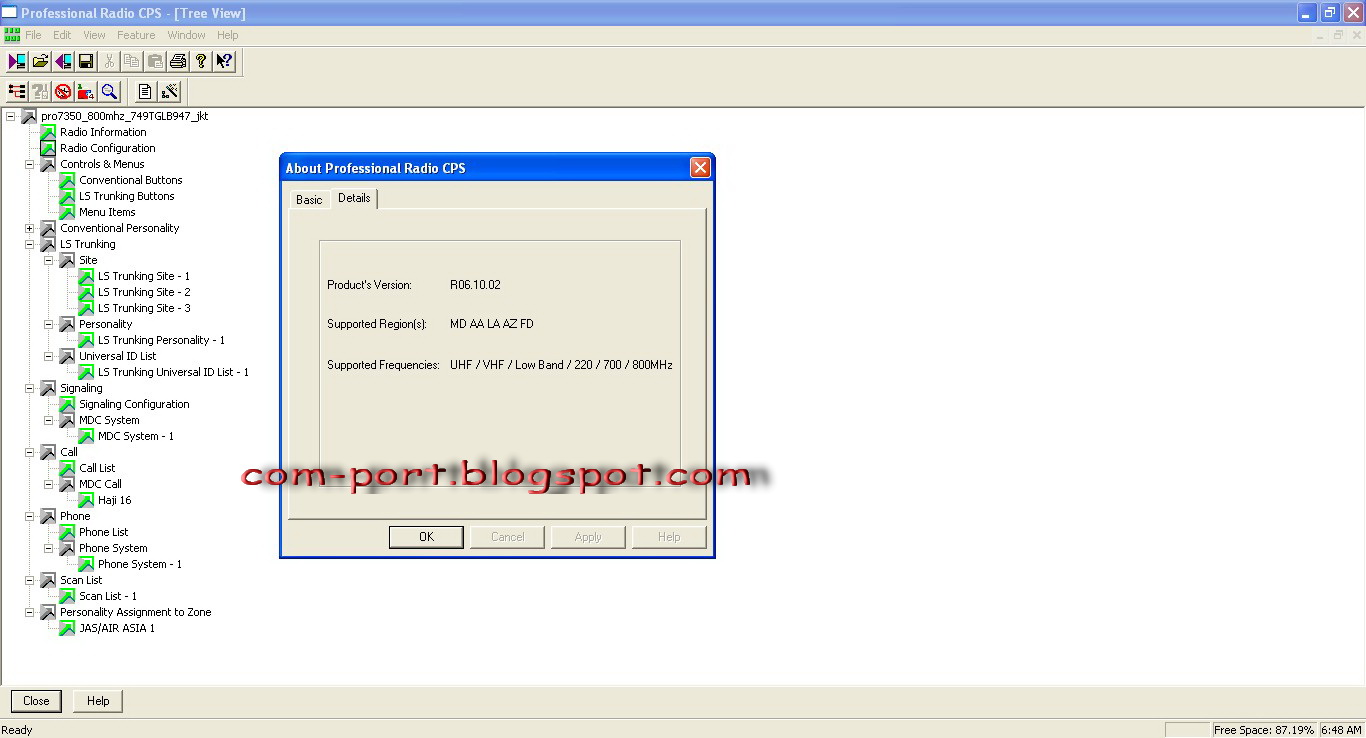
Puerto Serial para radiocomunicaciones soportado por Microsoft Windows
Puerto de Impresora para impresión de informes soportado por Microsoft Windows
Unidad de Disquetes de 3 1/2 pulgadas de 1,44 MB
CD-ROM para instalación de software


Problemas conocidos de CPS:
--------------------------

1) Si su PC corre la primera versión de Microsoft Windows 95
y no ha instalado Internet Explorer, podrá experimentar
problemas en la instalación y ejecución de CPS debido a que ciertos
componentes del sistema operativo son obsoletos.

Para eliminar este problema, se han incluidos dos parches (patches) de Microsoft
en CPS CD. Si experimenta problemas con Windows 95, por favor vaya al CD y ejecute:
/Win95Patches/40comupd.exe
/Win95Patches/dcom95.exe
y luego reinstale CPS.

2) En algunas PC, el CPS puede terminar en forma anormal si intenta hacer Print Preview
(vista preliminar de impresión) desde la pantalla Print Custom (impresión customizada).
Este problema sólo ocurre cuando se selecciona Print All (imprimir todos). Este problema
ha sido observado en las computadoras Compaq Windows 98 con los siguientes programas:
* Easy Access Internet Program (cpqEasyAcc.exe)
* Compaq Internet Watchdog Program (watchdog.exe)
Si debe utilizar la función CPS, se recomienda retirar estos
programas del inicio de la PC.

3) Cuando se imprime la vista árbol algunos nodos pueden superponerse en
la copia impresa y se podrá imprimir una hoja en blanco adicional. Es más probable
que este problema ocurra con grandes configuraciones de codeplug.

4) En algunas impresoras, las columnas en algunas tablas impresas podrían
ser apenas más anchas de lo habitual, haciendo que la tabla se expanda
en forma horizontal hacia la segunda página.


5) Las Emergency Revert Personalities (personalidades de reversión en caso de emergencia)
asignadas en la Signaling Configuration Page (página de configuración de señalización)
no serán rastreadas si la personalidad a la cual hace referencia ha sido desplazada de la vista
árbol.

6) En ciertas impresoras HP Laserjet la opción Print Summary (imprimir resumen) sólo imprimirá
una página. Si experimenta este problema, se recomienda que primero
guarde la información en un archivo y luego utilice un editor (Word, Wordpad, etc.).
para abrir el archivo e imprimir la información de resumen.

7) Con Windows ME y Windows XP, a veces se representa un conjunto extra de barras de desplazamiento
cuando se visualizan ciertas pantallas.


Sugerencias de Programación:
---------------------------

1) Nótese que toda personalidad convencional nueva/agregada
deberá asignarse a una posición de zona/canal. Para agregar una zona a
un radio, haga clic en "+" en una ventana Personality Assignment to Zone
(asignación de personalidad a una zona). Para agregar una personalidad
convencional al radio, haga clic en "+" en una ventana Conventional Personality
(ventana de personalidad convencional). Para agregar una personalidad adicional a una zona,
ir a la ventana Personality Assignment to Zone: Channel (asignación de personalidad a
zona:canal) para la zona deseada. Haga clic en el botón derecho del mouse dentro
de la tabla del canal para agregar la entrada de una personalidad convencional. Por favor lea
la ayuda de CPS para mayor información.

2) Los botones de Speed Dial (discado rápido) no deberán programarse
en los botones P1, P2, y P3 en los radios que superponen estos botones con las teclas
de navegación del menú. Los botones de discado rápido no funcionarán
en esta configuración porque los botones funcionan como las teclas
de navegación del menú cuando se ingresa el modo teléfono.

3) Cuando se agrega una nueva personalidad convencional, verifique que el
ancho de banda seleccionado en la pantalla Conventional Personality Basic (personalidad
convencional básica) sea correcto. Las selecciones incorrectas llevarán a un mal
funcionamiento del radio.


=================================================================
Rádio Profissional - Software de Programação do Cliente R06.10.02
=================================================================

Melhorias nesta versão:
----------------------

- Acrescentado a capacidade que previne a edição do canal prioritário 1 através do menu do rádio.
- Acrescentado suporte para banda de 700 MHz do Portátil Waris HT1250LS+ e Móvel CDM1550LS+ para o novo 700 MHz. Um BLOCO de Guarda de Banda: 757-758 / 787-788 MHz.


Reparos de erros significativos:
-------------------------------

- N/A


Requisitos de Sistemas:
----------------------
Sistemas Operacionais: Windows 95, Windows 98, Window NT 4.0,
Windows ME, Windows 2000 Professional,
Windows XP (Home e Office)

Requisitos de Hardware:
Processador Pentium II 333 ou superior
Memória 64 MB RAM recomendada
Espaço em Disco Rígido Mínimo de 16 MB de espaço livre
Periféricos Mouse ou Trackball com suporte Microsoft Windows
Porta Serial com suporte Microsoft Windows para comunicação de rádio
Porta para Impressora com suporte Microsoft Windows para impressão de relatórios
Unidade de Disco Flexível de 1,44 MB 3 1/2 pol
CD-ROM para instalação de software

Problemas Conhecidos de CPS:
---------------------------

1) Se seu PC estiver executando a primeira versão de Microsoft Windows 95
e Internet Explorer não estiver instalado, você pode ter problemas na
instalação e execução do CPS pelo fato de que certos componentes
do sistema operacional estarem desatualizados.

Para eliminar este problema, duas correções (patches) Microsoft foram incluídas no CD
de CPS. Se tiver problemas com o Windows 95, vá para o CD e execute:
/Win95Patches/40comupd.exe
/Win95Patches/dcom95.exe
e depois reinstale o CPS.

2) Em alguns PCs, o CPS pode terminar anormalmente se Print Preview (ver impressão antecipada)
for buscado na tela Print Custom (customizar impressão). Esse problema somente
ocorre quanto Print All (imprimir tudo) é selecionado. Esse problema foi observado em computadores
Compaq Windows 98 com os seguintes programas em execução:
* Programa Easy Access Internet (cpqEasyAcc.exe)
* Programa Compaq Internet Watchdog (watchdog.exe)
Se essa função do CPS for usada, recomenda-se a remoção desses programas
da inicialização do PC.

3) Quando a imagem da árvore é impressa, alguns nós podem se sobrepor na
impressão e pode ser impressa uma página em branco extra. Esse problema
tem maior probabilidade de ocorrer em grandes configurações de codeplugs.

4) Em algumas impressoras, as colunas em algumas tabelas impressas podem ser
levemente mais largas do que deveriam, fazendo a tabela se estender horizontalmente
para uma segunda página.

5) A função Emergency Revert Personalities (reversão de personalidades de emergência) designada
na Signaling Configuration Page (página de configuração de sinalização) não será rastreada
se a personalidade em referência for movida na imagem da árvore.

6) Em algumas impressoras HP Laserjet, na opção Print Summary (resumo de impressão) apenas
uma página será impressa. Se enfrentar esse problema, recomenda-se primeiro salvar
as informações para um arquivo e depois usar qualquer programa de edição (Word, Wordpad, etc..)
para abrir o arquivo e imprimir as informações do resumo.

7) Quando em Windows ME e Windows XP, algumas vezes um jogo extra de barras de paginação
é exibido quando são mostradas determinadas telas.


Dicas de Programação:
--------------------

1) Deve-se observar que uma nova/adicional personalidade convencional
deve ser designada para uma posição de zona/canal. Para acrescentar uma zona
a um rádio clique no "+" em uma Personality Assignment (designação de personalidade)
para a Zone Window (janela de zona). Para acrescentar uma personalidade
convencional ao rádio, clique no "+" em uma Conventional Personality Window (janela de personalidade
convencional) . Para acrescentar uma personalidade convencional adicional a uma zona
vá para a Personality Assignment (designação de personalidade) para a janela Zone:Channel (zona:canal)
da zona desejada. Clique a tecla direita do mouse dentro da tabela de canal para acrescentar uma entrada
de personalidade convencional. Consulte a ajuda do CPS para informações adicionais.

2) Os botões de Discagem Rápida não devem ser programados nos botões P1, P2 e
P3 nos rádios, o que sobrepõe esses botões com as teclas de navegação do menu.
Os botões de discagem rápida não vão operar nesta configuração, pois os botões
funcionam como as teclas de navegação do menu quando o modo de telefone
é selecionado.

3) Ao acrescentar uma nova personalidade convencional, certifique-se de que a
largura de banda selecionada na tela Conventional Personality Basic (básica de personaliadade
convencional) seja a correta.
Seleções incorretas levarão ao mau desempenho do rádio.